Gantt charts in Notion: building a timeline view and where it falls short
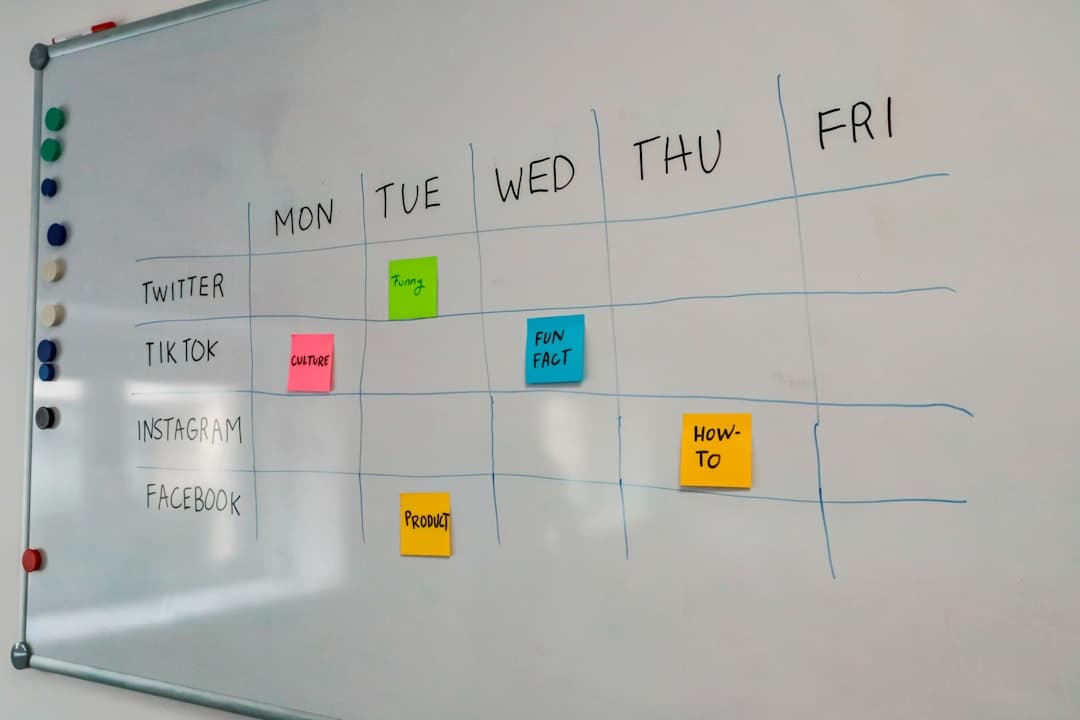
Notion does not have a view called "Gantt chart". What it has is the timeline view, a database layout that plots each row as a bar across a date range. Add a dependencies setting on top of that, and you get something that works like a Gantt chart for most small team projects. If you searched "notion gantt", the short answer is: yes, you can build one, it takes about ten minutes, and the free plan already includes dependencies. The longer answer is about what happens in week three, when the plan changes and a few people need to keep the bars honest. This article covers both, using Notion's own help center and pricing page as checked on October 8, 2026.
What a Notion Gantt chart actually is
A Gantt chart has three parts: a list of tasks, a bar for each task showing when it starts and ends, and lines showing which task has to finish before another can start. Notion splits those parts across features you switch on separately.
- The task list is a database. Each task is a page in that database.
- The bars come from the timeline view. Notion's help center describes it as a type of database view for anyone who needs to see projects plotted chronologically, at any scale from hours to years.
- The lines come from dependencies, a database setting that links tasks so that one blocks another.
That split matters. A spreadsheet Gantt template gives you all three in one sheet, and nothing stops you from breaking it. Notion gives you a real database underneath, which means the same tasks can also appear as a board, a table, or a calendar without copying anything. The cost is that you have to set up the database correctly first. A timeline with no date range has nothing to draw.
The pages ranking for this search are mostly Notion's own template gallery. Templates are a fine shortcut, but they hide the one requirement that decides whether your chart works: the date property. The rest of this article starts from an empty database so the moving parts are visible, then covers what templates do not tell you.
How to build a timeline view, step by step
The steps below follow Notion's help article on timeline view. The menu names are the ones shown in the app.
1. Create the database
Create a new page. Under Get started with, click the three dots and choose Timeline. That creates a database with a timeline view already attached. To put a timeline inside an existing page instead, type /Timeline view and press Enter.
If you already have a task database, open it, click + next to the current view name, and pick Timeline from the dropdown.
2. Give every task a date range
This is the step people miss. The help center states it directly: timelines only work if the database has at least one date property containing a range of dates. A single due date is not enough to draw a bar. You can either use one date property with an end date turned on, or two separate properties for start and end. Both are supported under Layout and Show timeline by in the settings menu.
If your database has more than one date property, for example one for build work and one for launch prep, you can switch which one the timeline plots from the same menu.
3. Set the scale and the table
Next to the Today button there is a dropdown for the time unit. Weeks or months suit most small team projects. Clicking Today jumps the view back to the current date.
Click the >> icon on the left to show a table beside the bars. That table can carry properties like owner and status, and you can run calculations on its columns, such as count of empty values or percent not empty. Percent not empty on the owner column is a quick way to see how many tasks nobody has claimed.
4. Adjust bars directly
Hover over either end of a bar and drag to change the dates. Drag a row up or down to reorder it. Small arrows appear when a task extends beyond the visible window, and clicking them jumps to it.
5. Limit what loads
Under Layout, Load limit controls how many pages the timeline shows at once. On a large database, a lower limit keeps the view usable, but it also means some tasks are not on screen. Check this setting before concluding that a task is missing.
Adding dependencies so dates move together
A timeline with bars but no links is a schedule, not a Gantt chart. The thing that makes a Gantt chart useful is seeing what slips when one task slips. Notion handles that with dependencies, and according to the pricing page they are included in the free plan alongside subtasks and custom properties.
To turn them on, open the database settings menu, choose More settings, then Dependencies. Notion asks how dates should shift when a blocking task moves. There are three options:
| Setting | What happens when task A (blocking B) moves one week later |
|---|---|
| Shift only when dates overlap | B moves only if A now runs into it. The gap between them can shrink. |
| Shift and maintain time between items | B moves one week later too, keeping the same gap. |
| Do not automatically shift | Nothing moves. You adjust B yourself. |
You can also choose to keep shifted tasks from starting or ending on weekends. Then select Turn on dependencies.
Which option to pick depends on how your team treats the plan. If the dates are commitments to a client, do not automatically shift forces someone to look at every knock-on effect before it reaches the client. If the dates are internal estimates that should always reflect reality, shift and maintain time between items keeps the chart truthful with no extra work. The middle option suits teams that pad their schedules and want slack to absorb small delays before anything else moves.
Sub-items are a related setting, found in the same menu. They let you break a task into smaller pieces. In timeline view you can show them nested under their parent or as a flat list. One detail worth knowing before you start deleting things: deleting a parent item also deletes all of its sub-items.
What it costs, plan by plan
Prices below were read from notion.com/pricing on October 8, 2026, in US dollars, per member per month.
| Plan | Billed yearly | Billed monthly | Notes relevant to a Gantt setup |
|---|---|---|---|
| Free | $0 | $0 | Subtasks and dependencies included. Pages and blocks unlimited for individuals but limited once 2 or more members join. 5 MB file uploads, 7 days of page history, up to 10 guests. |
| Plus | $10 | $12 | Unlimited blocks for teams, unlimited file uploads, unlimited charts, 30 days of page history. |
| Business | $20 | $24 | Adds private teamspaces, granular database permissions, SAML SSO, 90 days of page history. |
| Enterprise | Custom | Custom | Audit log, SCIM, advanced security controls. |
Notion displays prices in local currency depending on where the page is opened, so the figure on your own screen may differ. Japanese customers, for example, see yen prices with consumption tax added where applicable.
The practical reading for a small team: the timeline view and dependencies cost nothing, but a shared workspace runs into the block limit on the free plan once a second member joins. A team of five on Plus pays $50 a month billed yearly. If you need some people to see the plan without being able to edit the task database, granular database permissions sit on the Business plan, which puts the same five people at $100 a month billed yearly.
Where a Notion timeline starts to strain
None of the points below are hidden. They follow from Notion being a general workspace that offers a timeline as one way to look at a database.
Bars only appear for rows with a date range
Any task that has a due date but no start date does not show as a bar. In practice, the chart quietly drops tasks that somebody added in a hurry from the board or table view. A filter that shows rows with an empty start date, saved as its own view, catches these before the weekly review.
Seeing who is overloaded takes extra building
The timeline groups and sorts by any property, so you can group by owner and see each person's bars in a row. What Notion's timeline help article does not describe is a view that adds up each person's load per day, the kind of resource view where an overbooked week stands out by itself. Teams often build this with filters and formulas. It works, but someone has to maintain it.
The plan is only as current as the last edit
This is true of every Gantt tool, but it bites harder in Notion because the same database often holds notes, specs and meeting pages. People open the task page, update the description, and never touch the dates. Automatic shifting through dependencies helps only after the blocking task's dates are changed.
Templates add structure you then have to understand
The Gantt templates in Notion's gallery are well made, but each one comes with its own properties, formulas and relations. When something looks wrong, the person fixing it needs to understand how that template was built. For a team of five, a plain database with a date range, an owner, a status and dependencies is usually easier to keep alive than a feature-rich template.
Comparison with a tool built around boards
For context, here is how the same jobs compare against a dedicated board-based project management tool, where a Gantt view is one of several board types rather than a database layout.
| Job | Notion timeline view | Board-based tool with a Gantt board |
|---|---|---|
| Draw bars from start and end dates | Yes, needs a date range property | Yes, built in |
| Link blocking tasks and shift dates | Yes, with three shift settings | Depends on the tool; check before choosing |
| See workload per person by day | Build it yourself | Some tools include a resource board |
| Keep specs and docs next to tasks | Strong, the same workspace holds both | Usually a description field on each card |
| Set up time for a new project | Minutes, once the database pattern is known | Minutes, pick the board type |
Neither column wins outright. If your team already lives in Notion for documents, keeping the plan there avoids a second login and a second place to look. If the team mostly needs to see dates and owners and rarely writes long documents, a tool that starts from boards asks less of whoever maintains it. The Notion comparison page lays out the differences side by side, including pricing.
When to stay in Notion and when to move the schedule out
Stay in Notion if these are true:
- The team already writes specs, notes and decisions in Notion, and those pages are linked to tasks.
- One person is willing to own the task database and its views.
- The project has fewer than a few dozen dated tasks at any time, so the timeline stays readable.
Consider moving the schedule to a dedicated tool if these are true:
- People outside the core team need to see the schedule, and controlling what they can edit would push you to the Business plan.
- You keep building workload views and they keep breaking.
- Most of the team never opens the documentation pages and only needs to see what is due and who owns it.
A middle path is common. Keep documents in Notion and move only the dated tasks to a board-based tool, linking from each card back to the relevant Notion page. That keeps the reference material where it is, and gives the schedule a place where the dates are the main thing on screen. A tool that offers Gantt, kanban and calendar boards over the same cards, like the ones listed on the features page, covers the schedule side of that split.
What to change first
Before adding templates or formulas, make sure every task in the database has a start and end date and an owner, then turn on dependencies with the shift setting that matches how your team treats deadlines. If the team still struggles to keep the timeline current after two weeks, try running the schedule on a board-based tool such as Pinateca, which is free for up to 5 people and 10 boards, and keep the documents in Notion.
Q1. Does Notion have a Gantt chart?
Notion does not use the name Gantt chart, but its timeline view does the same job. Each database row with a date range appears as a bar, and with dependencies turned on you can link tasks so that moving one shifts the others. Both the timeline view and dependencies are available on the free plan as of October 2026.
Q2. Why is my Notion timeline empty?
The most common cause is a missing date range. Notion's help center states that a timeline only plots items when the database has at least one date property containing a range of dates. Open the settings menu, go to Layout, and check which date property is selected under Show timeline by, and whether it has an end date.
Q3. How do I make tasks move automatically when an earlier task is delayed?
Turn on dependencies from the database settings under More settings, then choose an automatic shift option. Shift and maintain time between items moves every blocked task by the same amount, while Shift only when dates overlap moves them only when the dates collide. You can also tell Notion to avoid weekends.
Q4. Do I need a paid Notion plan for a team Gantt chart?
The features are free, but the free plan limits pages and blocks once two or more members share a workspace, so most teams end up on Plus at $10 per member per month billed yearly, or $12 billed monthly, as of October 8, 2026. Permission controls on individual databases require the Business plan.
Q5. Is a Notion template better than building the timeline myself?
A template saves setup time and shows good patterns, but it brings properties and formulas the team has to understand when something breaks. For a small team, a plain task database with a date range, owner, status and dependencies is often easier to maintain. Start plain and add only what the team actually uses.
All articles in “Schedules and Gantt charts”Back to the blog