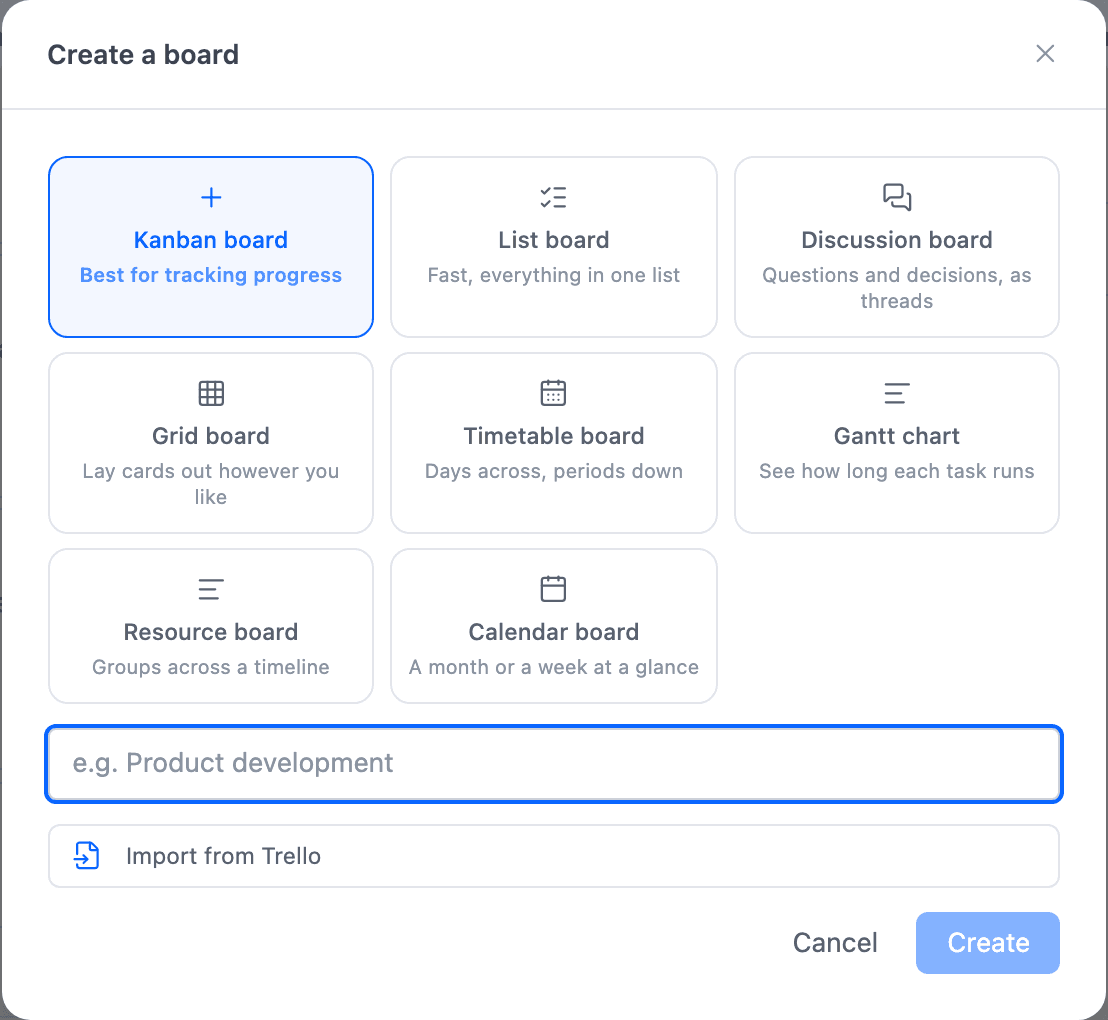
You choose the kind when you make a board. Cards, labels, assignees, due dates, and comments work the same everywhere. Only the arrangement changes. To see the same work from another angle, make a second board.
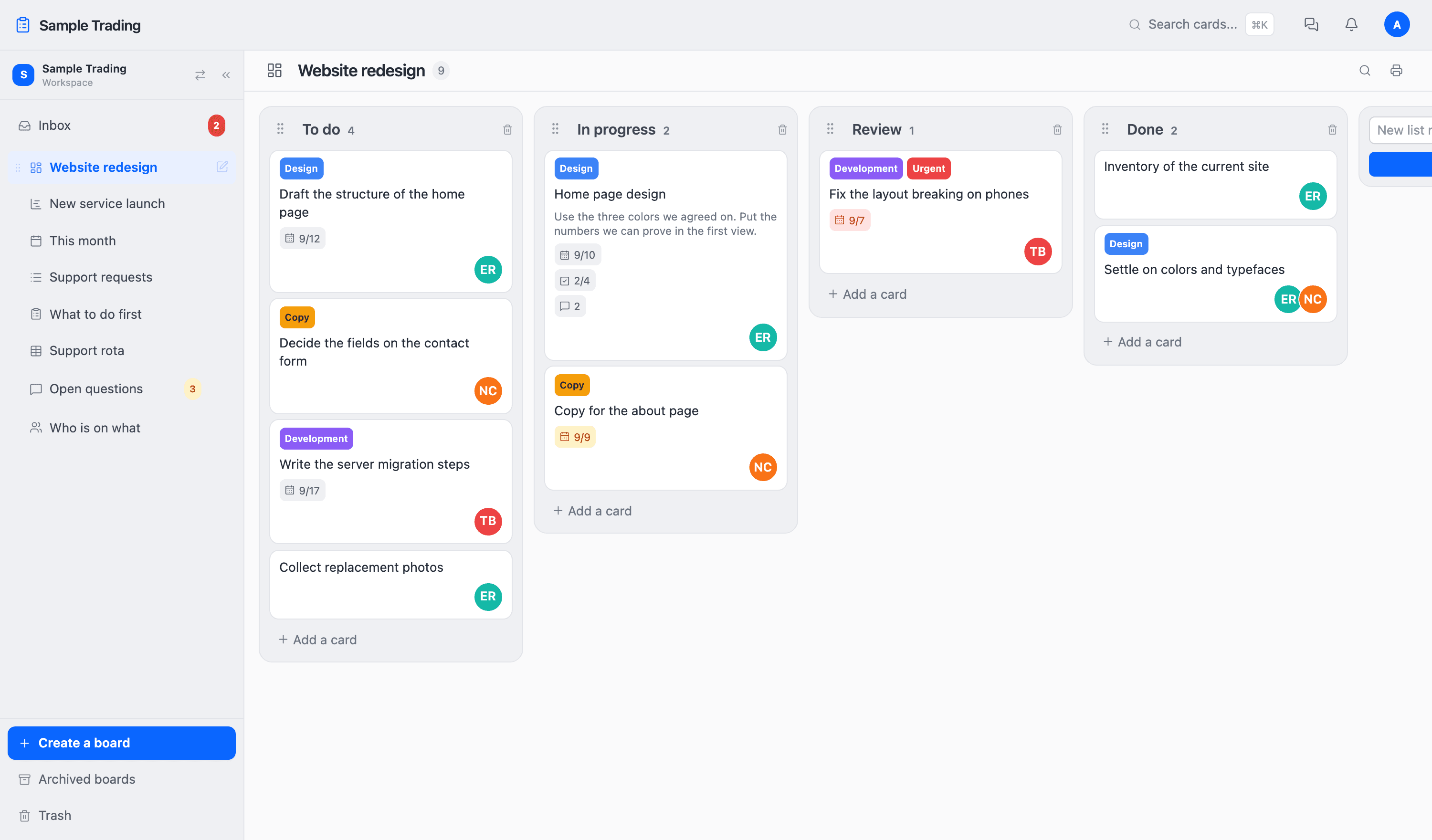
Kanban board
Move cards from column to column the way you move sticky notes. Columns are yours to create, so the way your team works becomes the screen. When in doubt, start here.
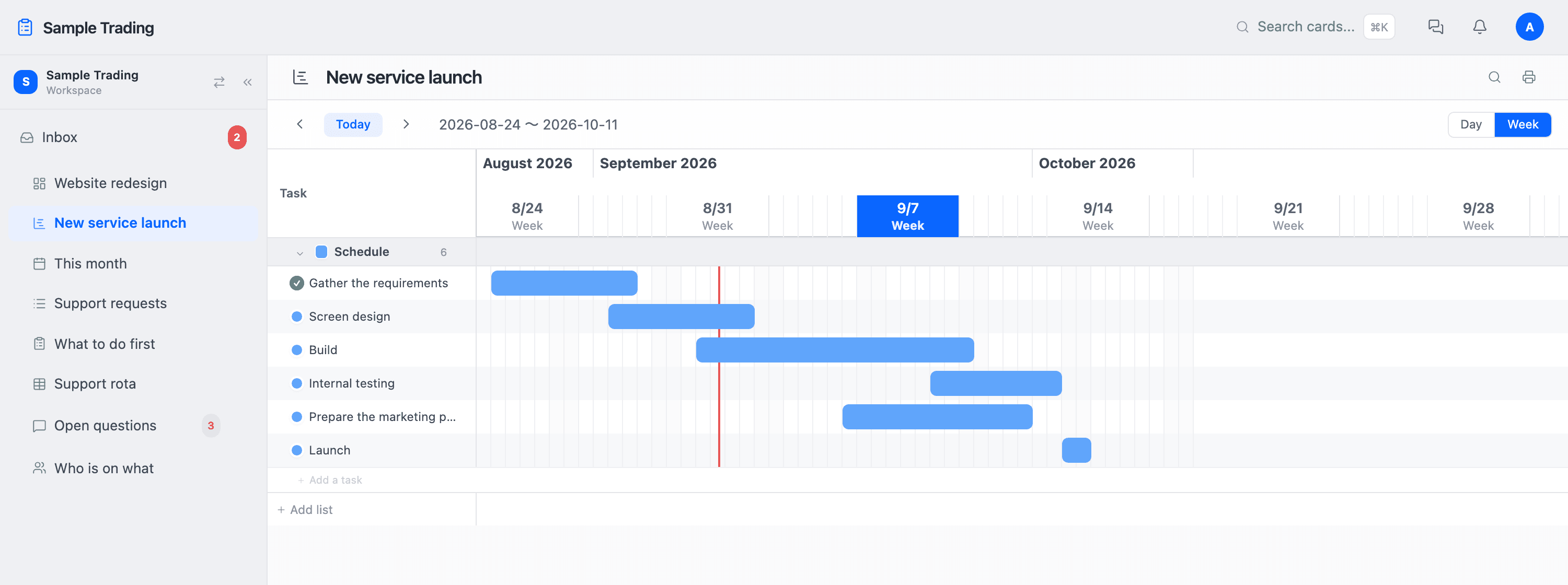
Gantt chart
The start and the deadline of each card become a bar. Grab a bar, move it, and the dates move with it. The scale switches between days and weeks, so the same screen works whether you are fixing details or looking at the whole thing.
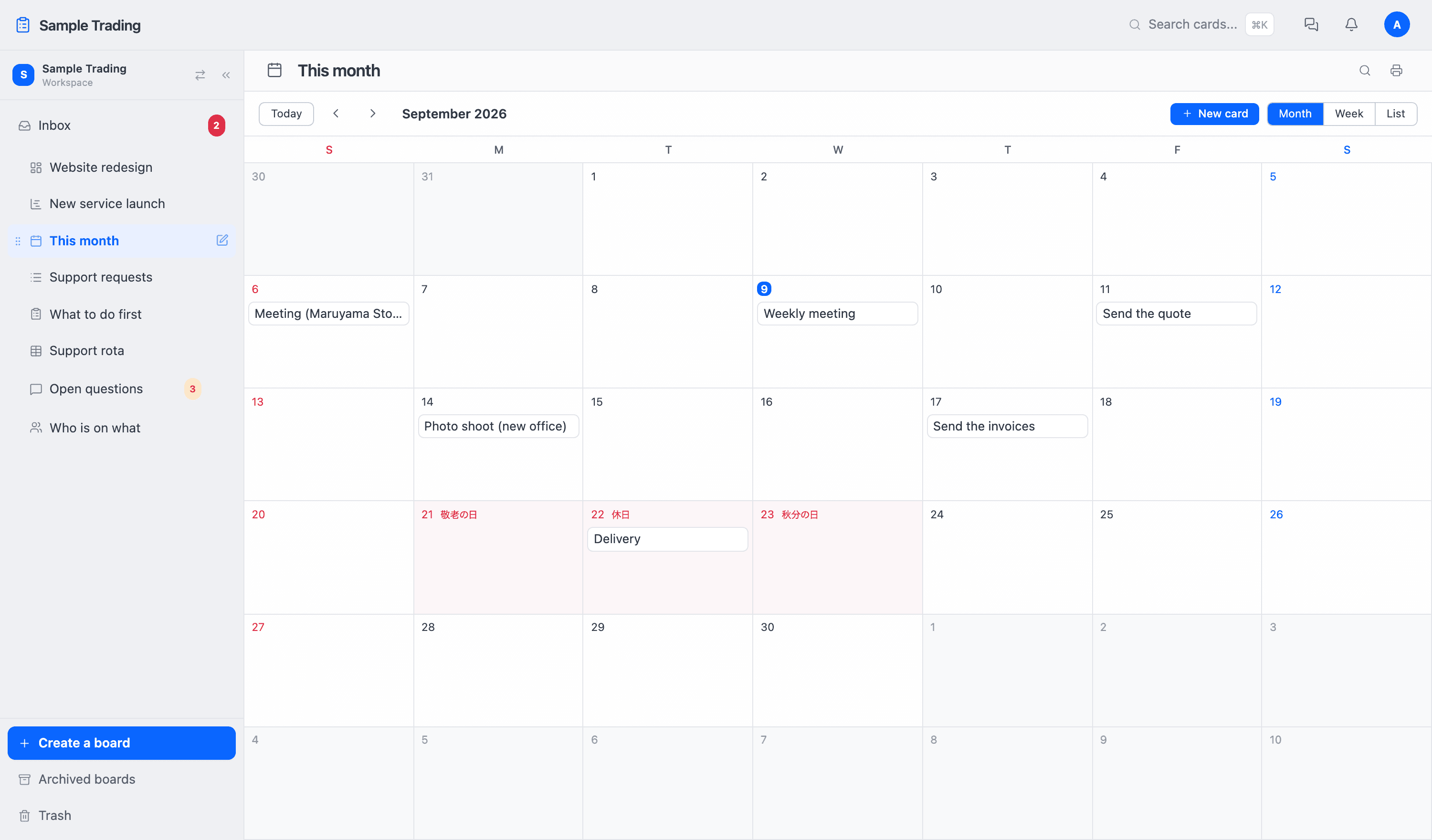
Calendar board
Cards with a due date sit on the squares of a month. That deadlines cluster in one particular week only becomes visible when you lay them out. Japanese public holidays are included.
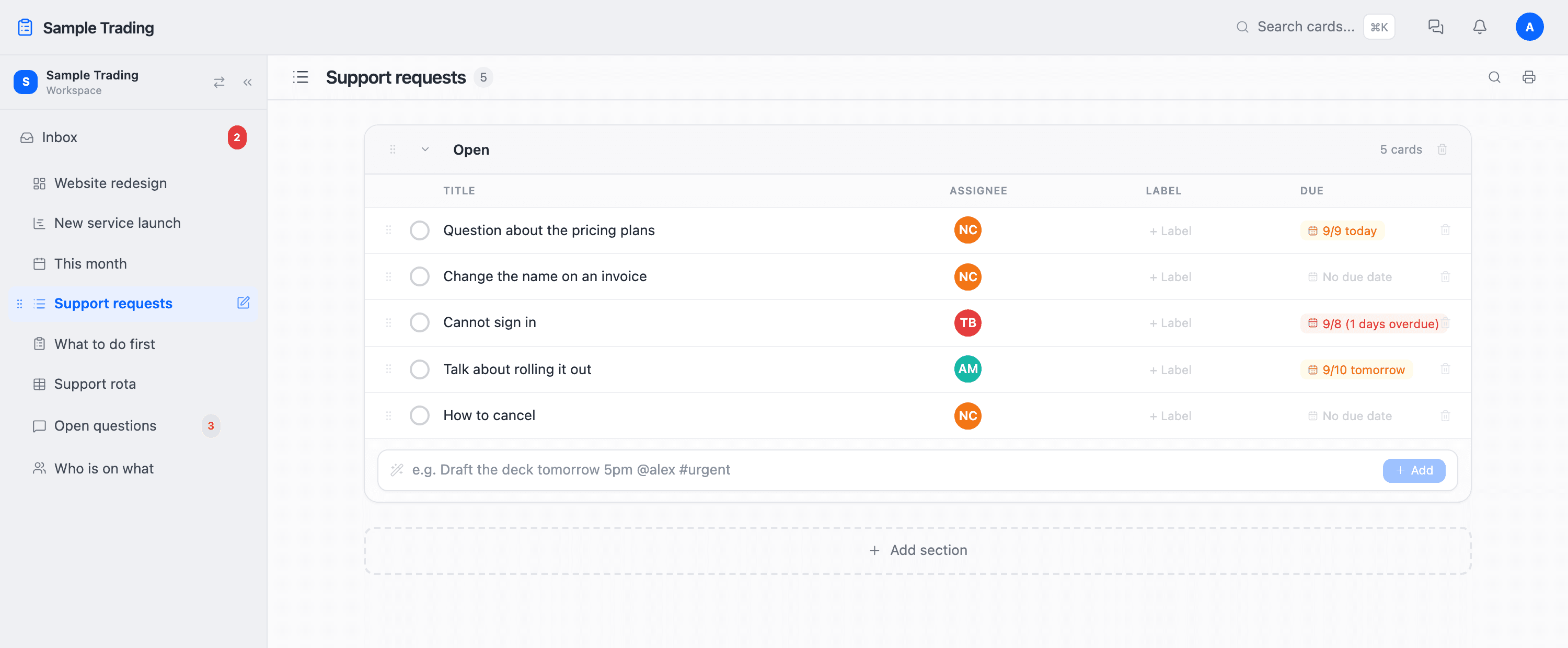
List board
Cards laid out as a table. Assignee, labels, and due date sit in one row, which suits looking for what is missing and taking stock. This is also the board where one line of text creates a whole card.
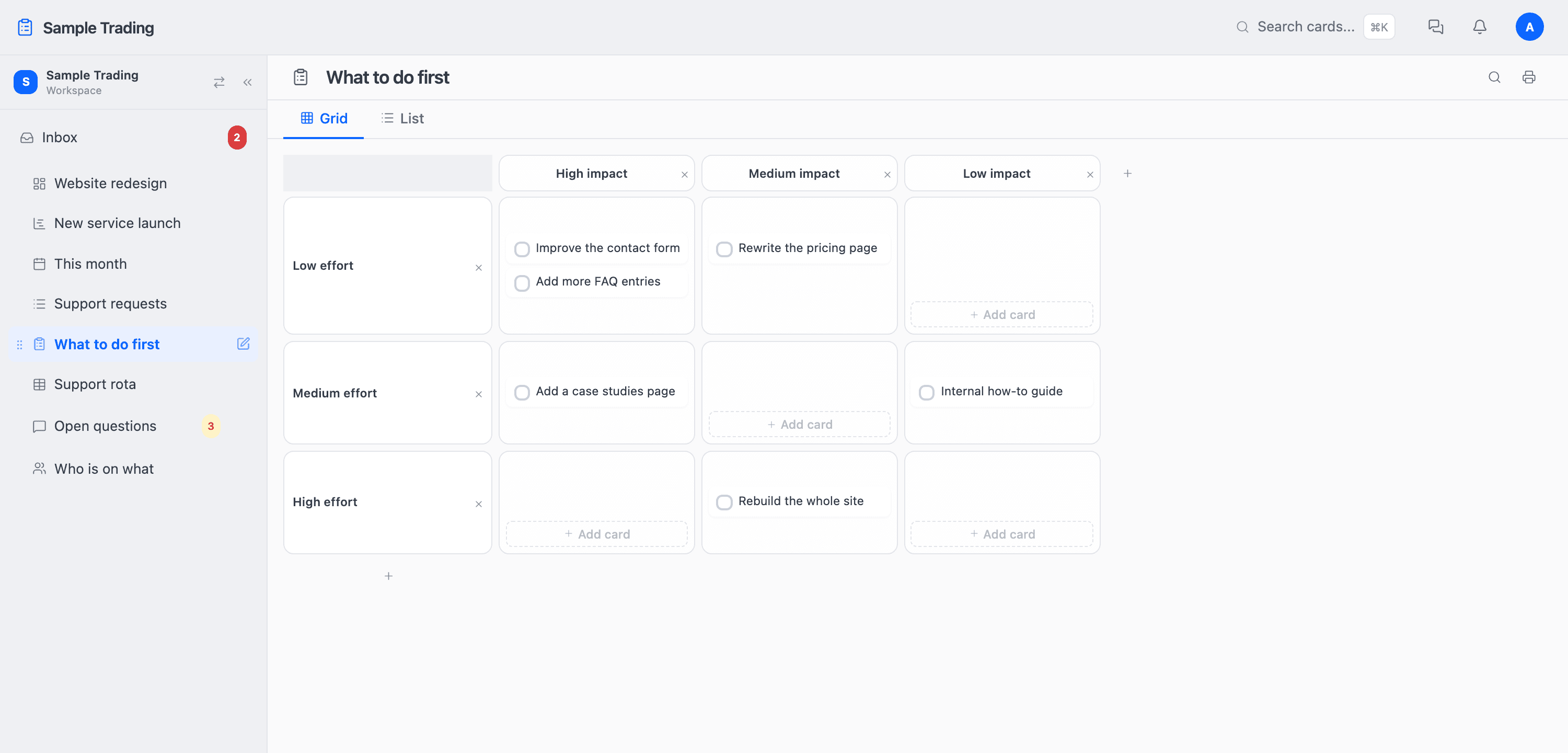
Grid board
Choose the two axes yourself and place cards in two dimensions. Impact against effort to set priorities, or owner against status to see who is holding what.
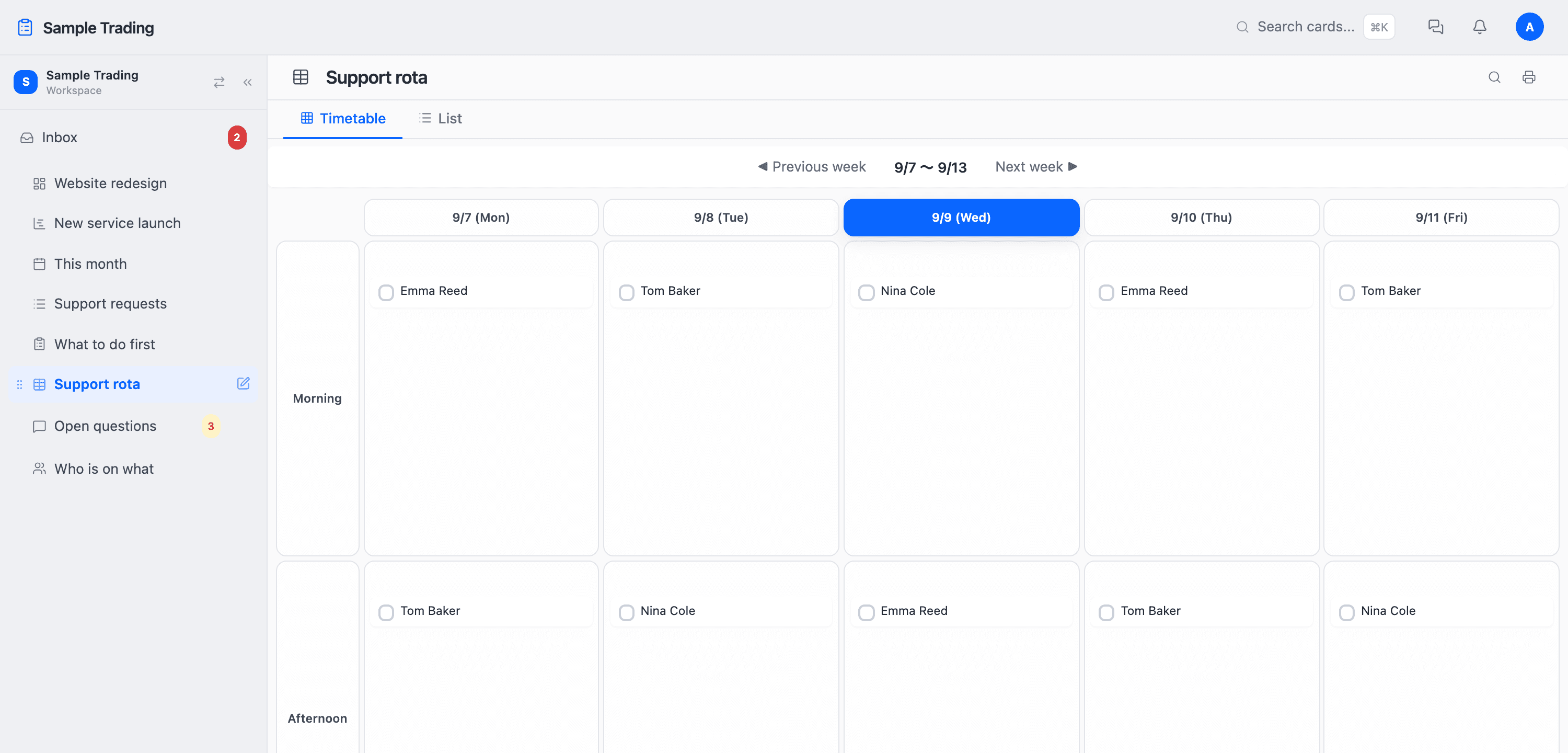
Timetable board
A grid of days and time slots. For shifts, duty rosters, and classes, where the slots exist before the work does.
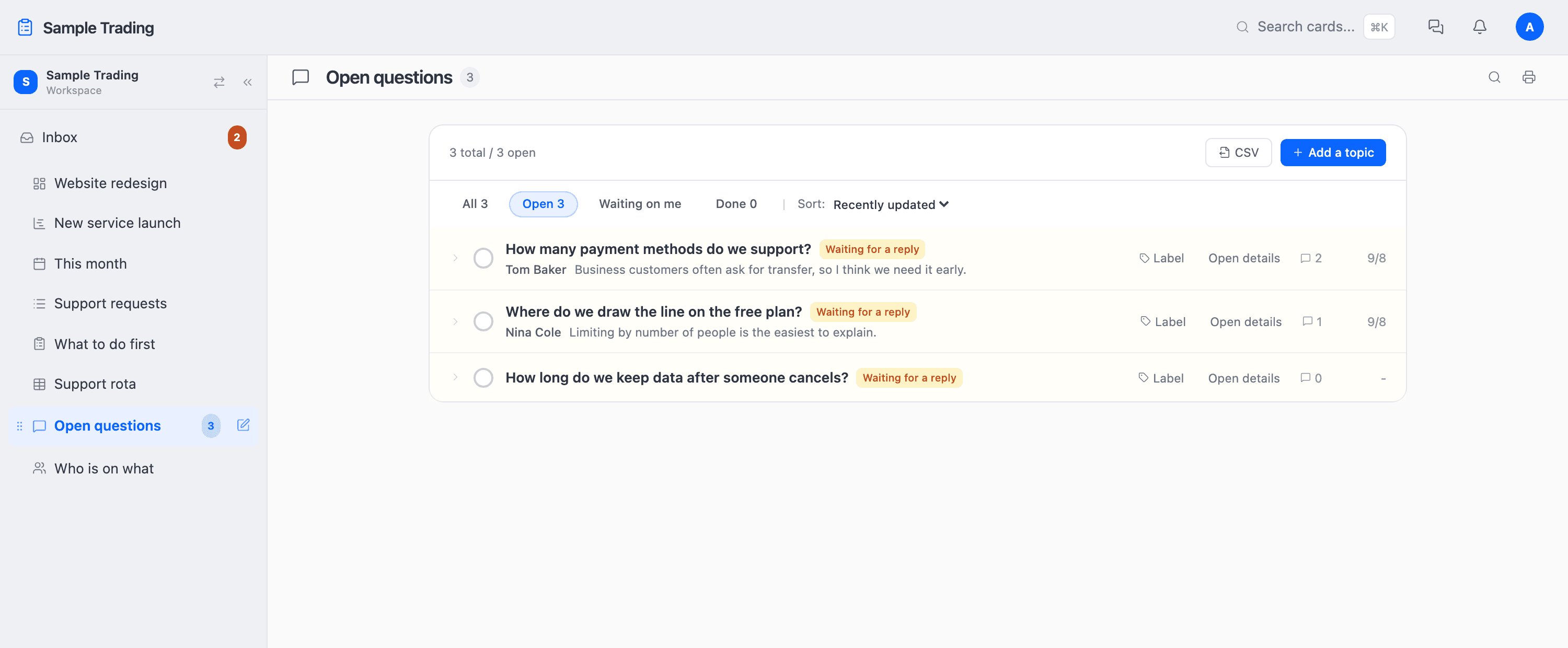
Discussion board
One thread per decision or open question. The way the conversation went stays as the record, so you can trace why something was decided.
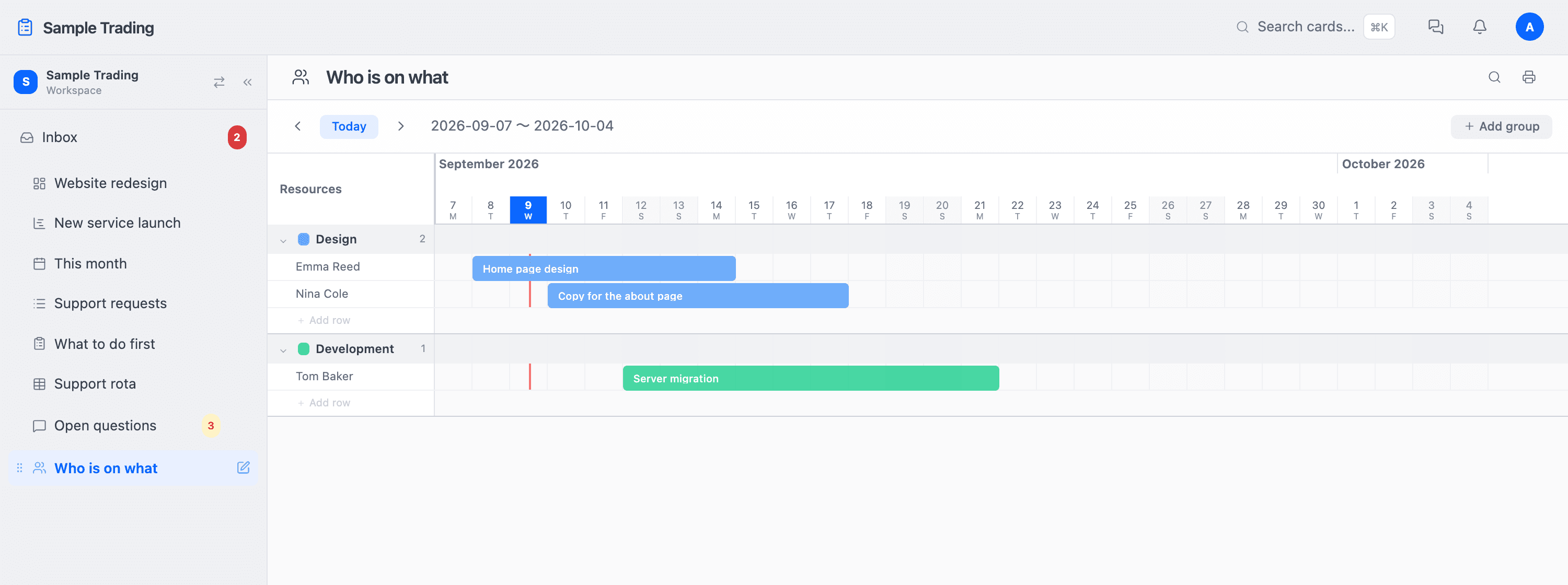
Resource board
People or teams as rows, time across the top, so you see who is doing what and when. Anyone with overlapping work has overlapping bars.
What you can change later
The kind of board is fixed when you create it. It cannot be switched afterwards, so if you want a different view, make a new board and move the cards. Cards move between boards from the Move menu.
Grid and timetable boards also have a list view, switched with a tab. Use it when you want to check everything you placed on the grid in one table.