Inviting members
On the member screen, enter an email address, choose a role, and press invite. They get an email, open the link, choose a password, and they are in.
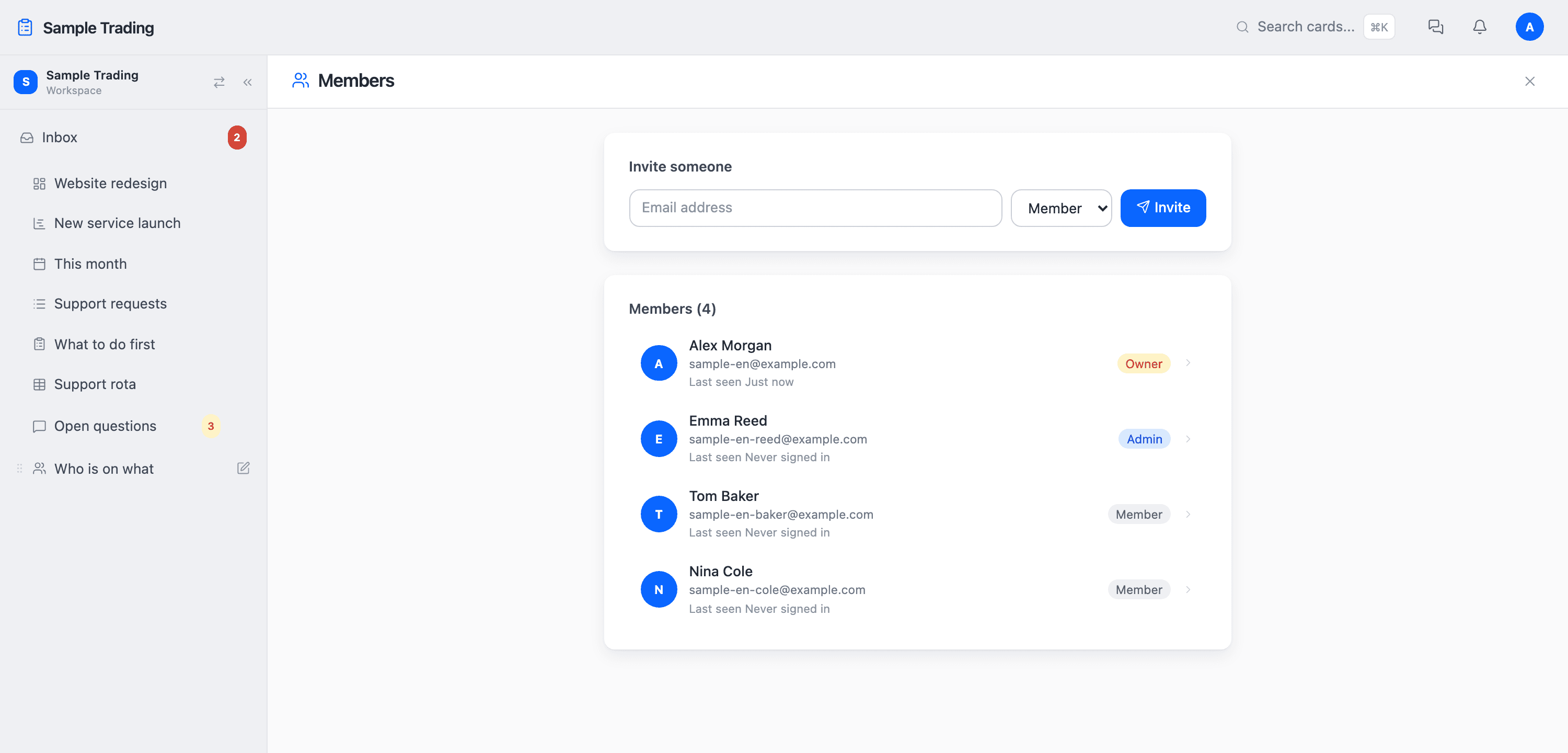
The three roles
Three roles apply across the whole workspace.
| Role | What they can do |
|---|---|
| Owner | Everything: workspace settings, adding and removing members, and issuing API tokens. |
| Admin | Manage members and every board. They are added to new boards automatically. |
| Member | Work on the boards they belong to. By default they can also create boards. |
To limit board creation to admins, switch it in the workspace setting for who may create boards.
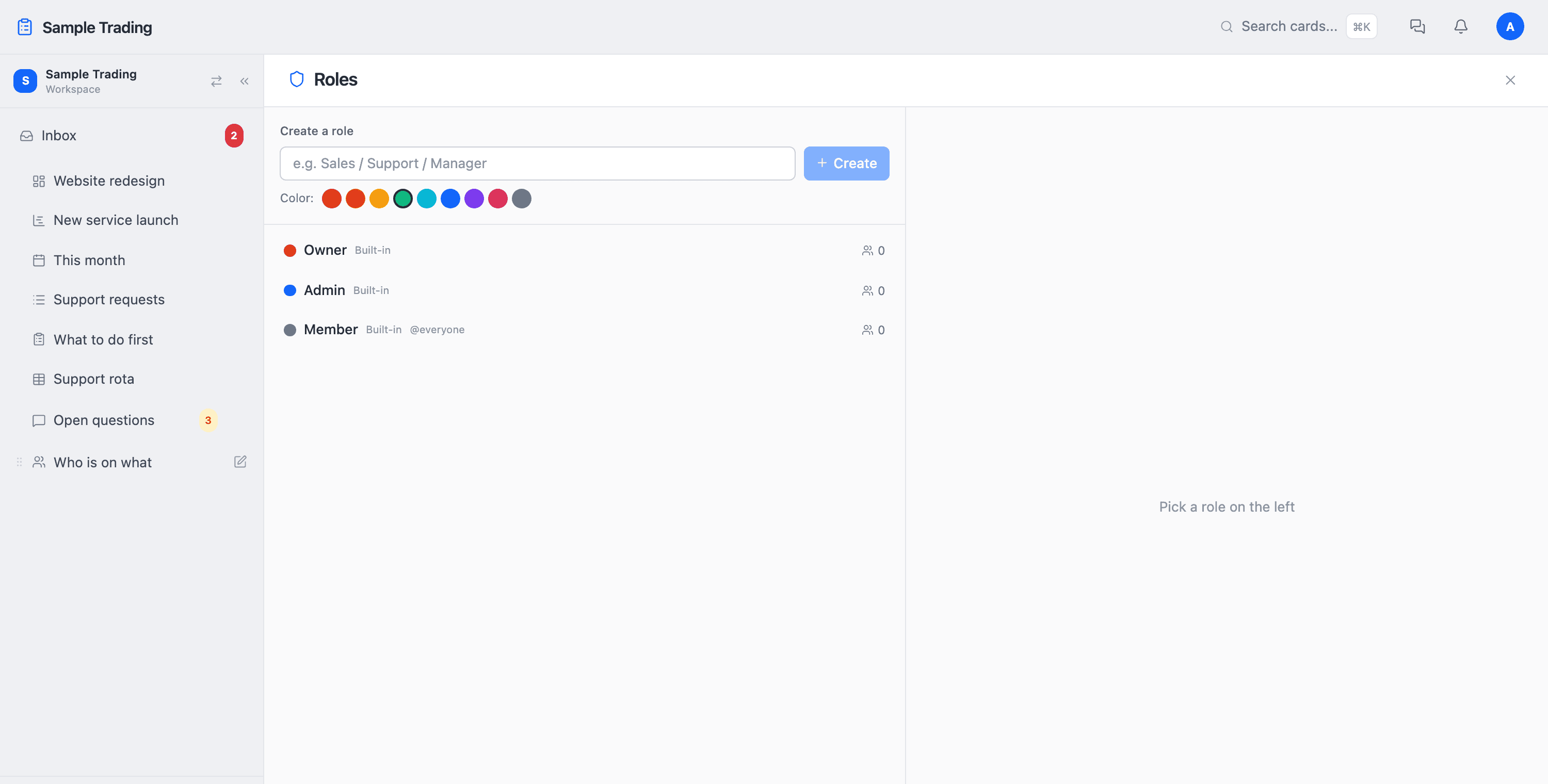
You can add your own roles
Sales, Office, Outside partner. Roles in your own words. Give one a color and a name, and you decide exactly what it can do on a board.
Permissions per board
Separately from the workspace role, each board has four levels.
- ManageBoard settings and adding or removing its members.
- EditCreate, move, and change cards. This is ordinary work.
- CommentRead and comment only. Cards cannot be moved.
- ViewRead only. For the people who receive the report.
A board can also be set to be visible to everyone in the workspace, or only to the people you add. Boards about salaries or quotes belong in the second kind.
Working with people outside your company
Give each engagement its own workspace and an outside member sees only what is in that workspace. One person can belong to several workspaces and switch between them at the top left.
Who did what
Cards created, moved, and deleted are kept in the workspace activity log. Login history is kept too, so anything you do not recognize can be checked. Deleted cards stay in the trash for 30 days, so a mistake is easy to undo.