Hand your task management
to ChatGPT and Claude.
Pinateca supports MCP. Enter the Pinateca address in the AI you already use, sign in, and allow access. From then on you can read boards, create cards, and move them just by asking.
What you can ask
The AI does what you would do on screen, through the public API. Every action shows up in the activity log and in webhooks, just as it does when you work on screen.
"Which cards are due this week?"
It reads the board and picks out the cards whose due dates are coming up.
"Turn the decisions in these notes into cards."
It reads the meeting notes you paste and lays the decisions out as cards in your to do list.
"Move this card to Done."
It moves a card to another list, and can put it at a specific position.
"Create a board for the new project."
It creates a board of the type you choose: kanban, list, Gantt, calendar, and more.
"Rewrite the description of this card."
It rewrites card titles and descriptions, and can fill in custom fields.
"List the Gantt tasks by start date."
It reads the tasks, with their start and end dates, from a Gantt board.
How to connect
The address is the same whichever AI you use.
| AI | How to add it |
|---|---|
| ChatGPT | In Settings, open Plugins and turn on developer mode, then use Add to create an app that uses an MCP server. Enter https://pinateca.com/mcp as the URL and choose OAuth for authentication. According to OpenAI's help center, full MCP support including write actions is in beta for Business, Enterprise, and Edu plans. |
| Claude(claude.ai / Claude Desktop) | Open Customize, go to Connectors, click + Add, choose Add custom connector, and enter https://pinateca.com/mcp as the URL. |
| Claude Code | Add it with claude mcp add --transport http pinateca https://pinateca.com/mcp, then sign in from /mcp. |
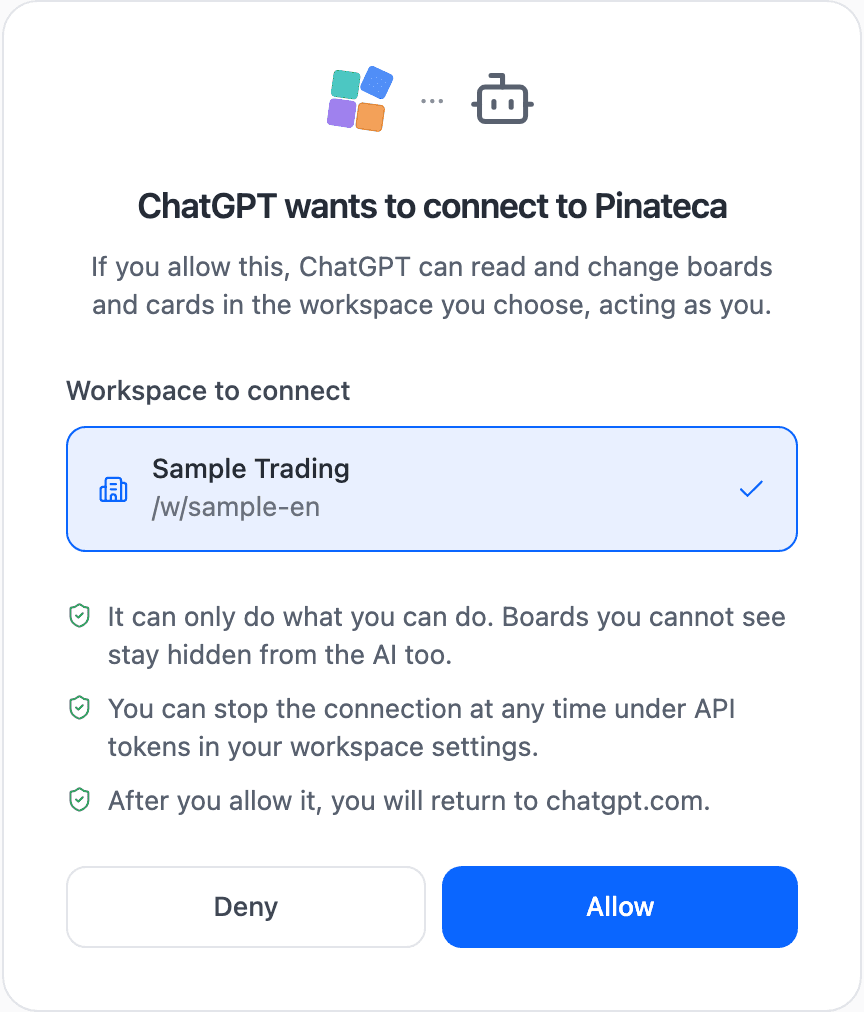
Wherever you connect from, the Pinateca sign-in page opens. Sign in, choose the workspace to connect, and press Allow. That is all.
Safe to hand over
Only what you can do
The AI acts as you. Boards you cannot see stay hidden from it, and it cannot leave the workspace you allowed.
No billing, no tokens
Payments, creating API tokens, and custom domain settings cannot be done from an AI. You do those on screen yourself.
Stop it any time
Each connected AI is listed by name under API tokens in your workspace settings. Revoke it there when you want to stop it.
You can also connect with a token
Where a sign-in page is not possible, use a token created in your workspace settings. To run it locally, it is one line: npx -y pinateca-mcp.
You can also call the API directly without MCP. The details are in the API reference.
Ask your AI for one thing first.
Free for up to 5 people. No credit card.
Start free